When pushing to GitLab through GitHub Desktop, the following authentication error may appear.
Authentication failed. Some common reasons include:
- You are not logged in to your account: see File > Options.
- You may need to log out and log back in to refresh your token.
- You do not have permission to access this repository.
- The repository is archived on GitHub. Check the repository settings to confirm you are still permitted to push commits.
- If you use SSH authentication, check that your key is added to the ssh-agent and associated with your account.
- If you use SSH authentication, ensure the host key verification passes for your repository hosting service.
- If you used username / password authentication, you might need to use a Personal Access Token instead of your account password. Check the documentation of your repository hosting service.
At first, I assumed it was just asking for password verification, so I entered my account password more than ten times, but nothing worked. I also tried changing the repository URL to the SSH format, but it kept hanging indefinitely. For a moment, I even thought GitLab itself was down.
Later, I discovered that GitLab had changed its authentication policy.
This issue has confused many users recently, especially those still accustomed to the old password-based authentication workflow.
In fact, the error message already explained the issue clearly:
- If you used username / password authentication, you might need to use a Personal Access Token instead of your account password. Check the documentation of your repository hosting service.
GitLab no longer supports direct HTTPS authentication using a regular “username + password” combination. If you enter your normal account password, GitLab’s security system will reject the request, which causes GitHub Desktop to display an authentication error.
So how can you restore authentication and continue pulling from or pushing to your repository?
The solution is simple: create a Personal Access Token in GitLab. Then, when GitHub Desktop prompts you to sign in, enter your GitLab username as usual, but paste the newly created token into the password field instead of your account password.
How to Create a GitLab Personal Access Token
- Open and sign in to GitLab
- Visit: GitLab Personal Access Tokens PageManual navigation path:Profile Avatar → Preferences → Access Tokens
- On the Personal Access Tokens page, click “Generate new token” (or the legacy token option if shown).
- Enter a token name and choose an expiration date
- Note: the expiration date cannot be modified later
- Select the required permissions
For normal Git Pull and Push operations, the following scopes are sufficient:
read_repository— Read repository accesswrite_repository— Write repository access
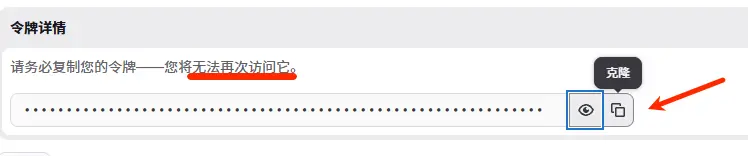
- After the token is created, copy and save it securely
- GitLab will not display the token again after this step
Reprinted from: Yijile.com( https://yijile.com/en/github-desktop-push-gitlab-authentication-failed/ )

Licensed under
CC BY-NC-SA 4.0
.
Please credit the source and link to this article, indicate if changes were made, and share under the same non-commercial terms.
