Open PowerShell in the Current Directory
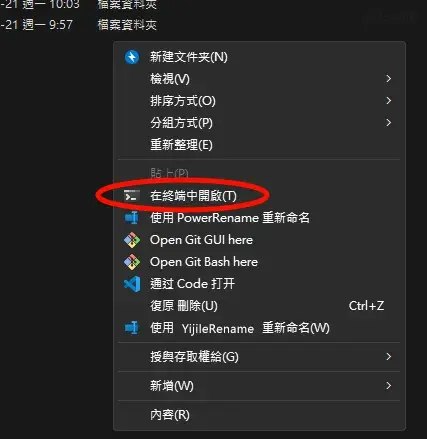
Hold down the Shift key and right-click on a blank area within the File Explorer window of your target folder. Then select “Open in Terminal” from the context menu. This will open a PowerShell window already pointed to the current directory.
Run the Following PowerShell Command
Press Enter to execute the command. It will search for and delete all .DS_Store files recursively.
|
|
If You’re Using Command Prompt (CMD)
If you’re using CMD instead of PowerShell, you can use the following command:
⚠️ Make sure you are already in the correct target directory before running this command.
|
|
Reprinted from: Yijile.com( https://yijile.com/en/how-use-windows11-powershell-terminal-commands-delete-all-ds_store-files/ )

Licensed under
CC BY-NC-SA 4.0
.
Please credit the source and link to this article, indicate if changes were made, and share under the same non-commercial terms.
